
Instructions: Updating Your Profile on the HBT Member Portal (Powered by ShulCloud)
For the first time, you can update your own information directly — no calls or emails needed. This page walks you through login and your first profile update in about 5 minutes.
Why the Member Portal on ShulCloud?
In 2026 (5787), Temple HBT introduced the Member Portal, powered by ShulCloud. It gives you one place to manage your HBT experience, update your information, register for programs, and move seamlessly between the Member Portal and TempleHBT.org.
- Update your information directly: Easily add a Yahrzeit, update your email, or change a phone number yourself — no need to email or call the office to make simple updates!
- Easily subscribe — and unsubscribe: Want to change your Mah Nishtanah subscription, or whether you get e-mailed Yahrzeit reminders? You can easily see what you are subscribed to and change it at any time (Yahrzeit subscription coming soon).
- Register for programs and renew your membership: Easily register yourself and any guests for High Holy Day services, renew your membership, and register children for Chaverim School all in one place (coming soon!).
- View your account history: Instantly check your balance, review past billing statements, and make and schedule payments online.
Ready to log in? But first, read the tips below that will make your first login easier.
Log In to the Member Portal
Next time, you can go directly to templehbt.shulcloud.com to log in.
1Log In
- Click the button above. You may be asked to verify your email with a 6-digit code sent to you.
- If prompted, enter the code and click Continue.
- First time only: create a password (12+ characters, with an uppercase letter, lowercase letter, number, and special character).
2Find Your Profile
- Once logged in, you'll land on your Account Dashboard.
- Click the My Profile tile, then View and Edit My Profile to see everything.
3Update These Items
Only fields with a red asterisk (*) are required. Everything below takes just a few minutes:
- Personal tab: add a photo, and under Permissions, make sure Administer Family, Billing, and Login all remain checked:
- Administer Family — lets you add, edit, or update info for family members in your household (HBT considers "children" to be age 22 or younger living in the household; older children can sign up for their own account)
- Billing — lets you view transaction history, billing statements, and make payments online
- Login — lets you log in at all. If unchecked, you'll be locked out entirely.
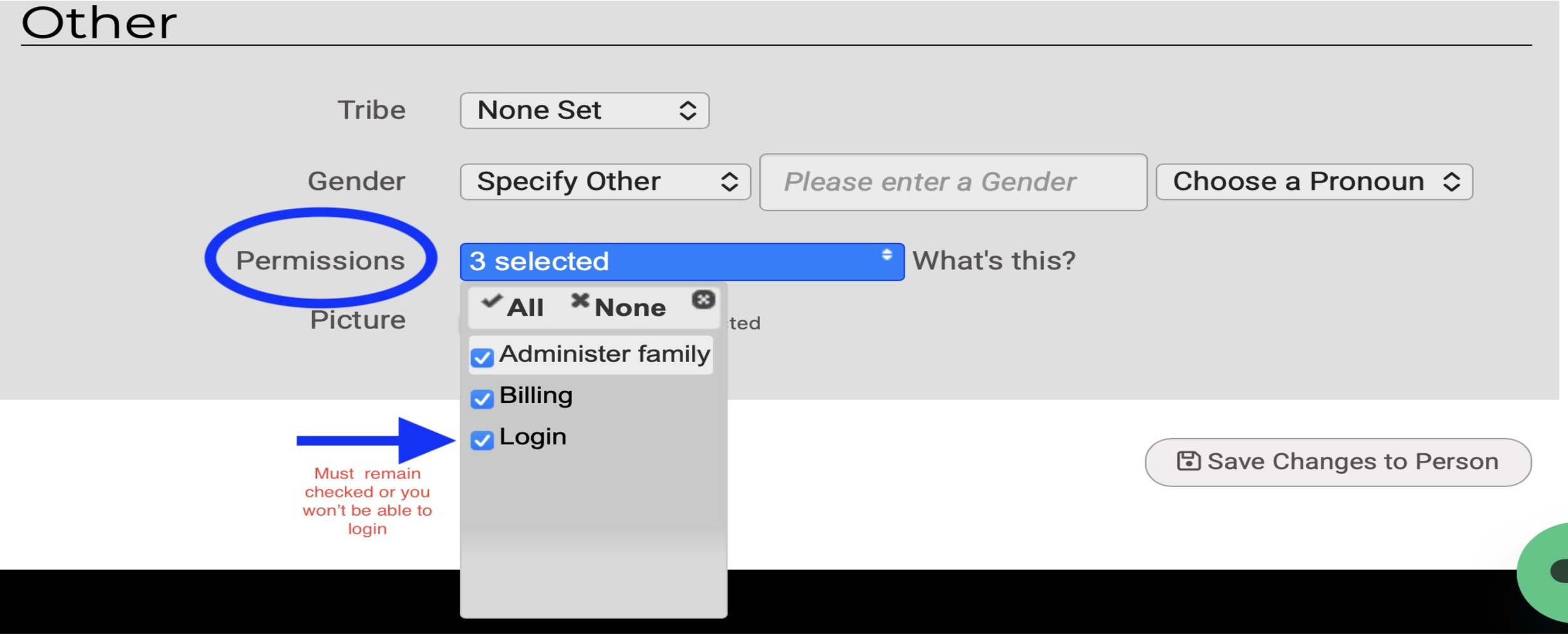 A few fields — like "Tribe," and the Gender options — come from our software provider and don't reflect language we'd choose ourselves. We're working with them on more inclusive options; for now, please feel free to skip or disregard those specific fields. We're sorry for the inconvenience.
 - Contact Info tab: confirm your phone number and email subscriptions
- Additional Info tab: add your pronouns and gender
- Emergency Contact: please fill this in — we hope to never need it
- Media Release Consent: please complete this section
4Save and You're Done
- Click Save Changes to Person at the bottom of the page.
- Then click Return to My Account Menu to head back to your Dashboard.
- If a change (like a photo) doesn't seem to appear, just refresh the page.
Now you're ready!
Log In to the Member Portal
Next time, you can go directly to templehbt.shulcloud.com to log in.
Questions? We're happy to help. Email techsupport@templehbt.org or call Benita in the temple office at 617-323-0486.