
Update Your Profile in the HBT Member Portal
The Member Portal, powered by ShulCloud, lets you keep your own information up to date. This page walks you through logging in and making your first update. It takes about 5 minutes.
New here? While this page is for members, here is how to connect.
You already have an account. HBT has set up a profile for every member household, so you do not need to register. If you see "Register" or "Create a New Account," skip it. Log in with the email address HBT has on file for you.
What you can do in the Member Portal
- Update your information yourself. Change an email or phone number, add a photo, or add a Yahrzeit. No need to call or email the office.
- Choose your email subscriptions. See what you get from HBT, such as Ma Nishtanah, and subscribe or unsubscribe any time.
- Renew and register. Renew your membership, register children for Chaverim School, and sign up for programs and High Holy Day services when registration is open.
- See your account. Check your balance, review past statements, and make or schedule payments online.
Ready? Log in with the email address HBT has on file.
Log in to the Member PortalNext time, go straight to templehbt.shulcloud.com.
Opening this from Facebook or Instagram? If the login page does not open, tap the ••• menu and choose "Open External Browser." Their built-in browsers can block the login page.
-
Log in
- Click Log in to the Member Portal and enter the email address HBT has on file.
- The first time only, click "Forgot Password?" to create your own password. ShulCloud emails you a link. If it does not arrive in a few minutes, check your spam folder.
- Your password needs at least 12 characters, with an uppercase letter, a lowercase letter, a number, and a special character.
-
Find your profile
- After you log in, you land on your Account Dashboard.
- Click the My Profile tile, then View and Edit My Profile.
-
Check and update your information
Only fields marked with an asterisk (*) are required. Go through these in any order:
- Personal tab: add a photo if you like, and leave the three Permissions boxes checked (explained below).
- Contact Info tab: check your phone number and email subscriptions.
- Additional Info tab: add your pronouns and gender identity, in your own words.
- Emergency Contact: please fill this in. We hope never to need it.
- Media Release Consent: please complete this section.
What the three Permissions boxes do
- Administer Family: lets you add or update information for your household. HBT counts children age 22 or younger who live with you. Older children can create their own account.
- Billing: lets you see your transaction history and statements, and make payments online.
- Login: lets you log in at all. If you uncheck it, you will be locked out.
Unless you know you want to change them, leave all three checked.
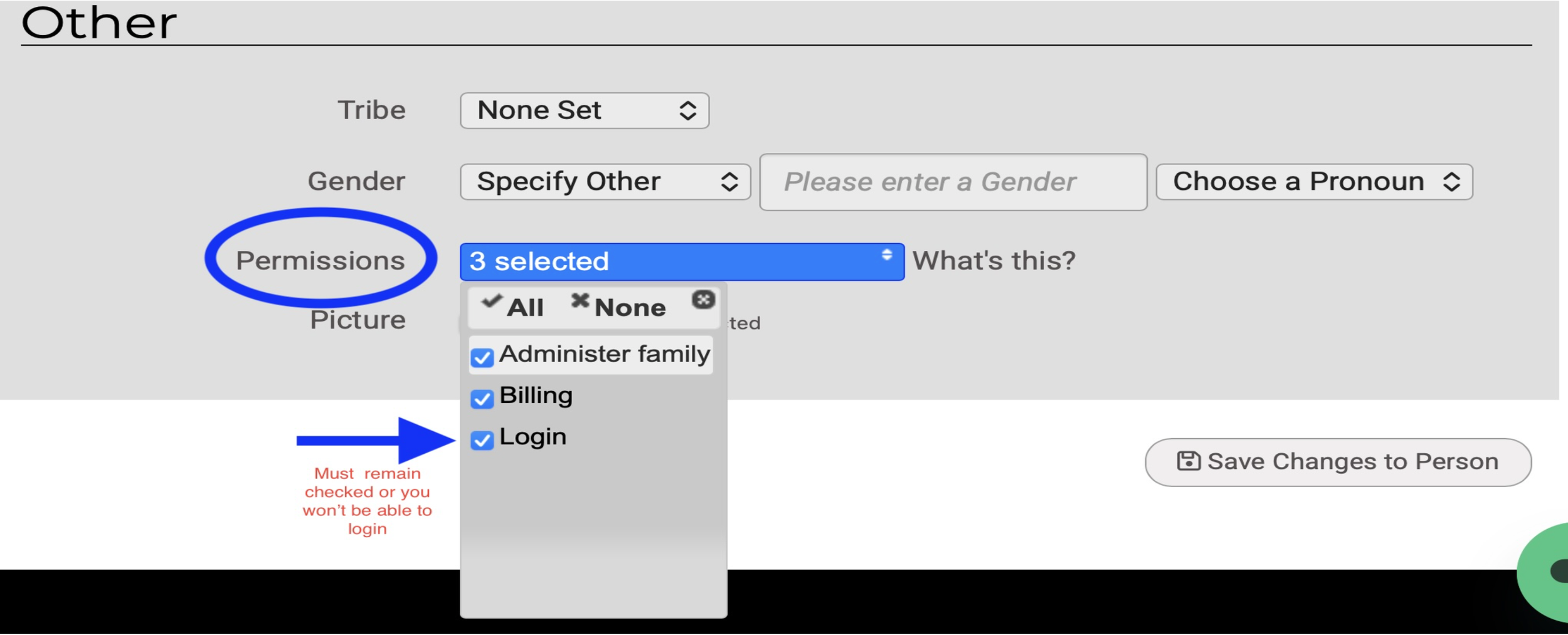
A few fields, such as "Tribe" and the built-in Gender choices, come from ShulCloud and are not language we would choose. Please skip them. We are asking ShulCloud for more inclusive options, and we are sorry for the inconvenience.
-
Save
- Click Save Changes to Person at the bottom of the page.
- Then click Return to My Account Menu to go back to your Dashboard.
- If a change, such as a new photo, does not show right away, refresh the page.
All set? Log in and get started.
Log in to the Member PortalNeed a hand?
We are happy to help. Email techsupport@templehbt.org or call Benita in the temple office at 617-323-0486.