🎓 Volunteer Training · Temple Hillel B'nai Torah
Check-In Practice Guide · May 4, 2026
Open the Training Check-In Manager for your campaign
🎟 One Stage Concert
🧪 Open TRAINING — One Stage Check-In
🍽 Family Concert & Dinner
🧪 Open TRAINING — Family Concert Check-In
Real system · Test data only · Completely safe to practice
What is this?
This practice takes about 5 minutes and uses the real Zeffy system with test customers — so you can't break anything. Work through the steps below, tap off your checklist, and you're ready for May 4.
🧪 Test Customers by Campaign
🎟 One Stage — Search these names in the One Stage manager
Morticia Adams
Bartolimo Beeswax
Eleanor Roosevelt
Marvin Musicman
Apple Turnover
Prune Turnover
🍽 Family Concert & Dinner — Search these names in the Family Concert manager
Paddington Bear
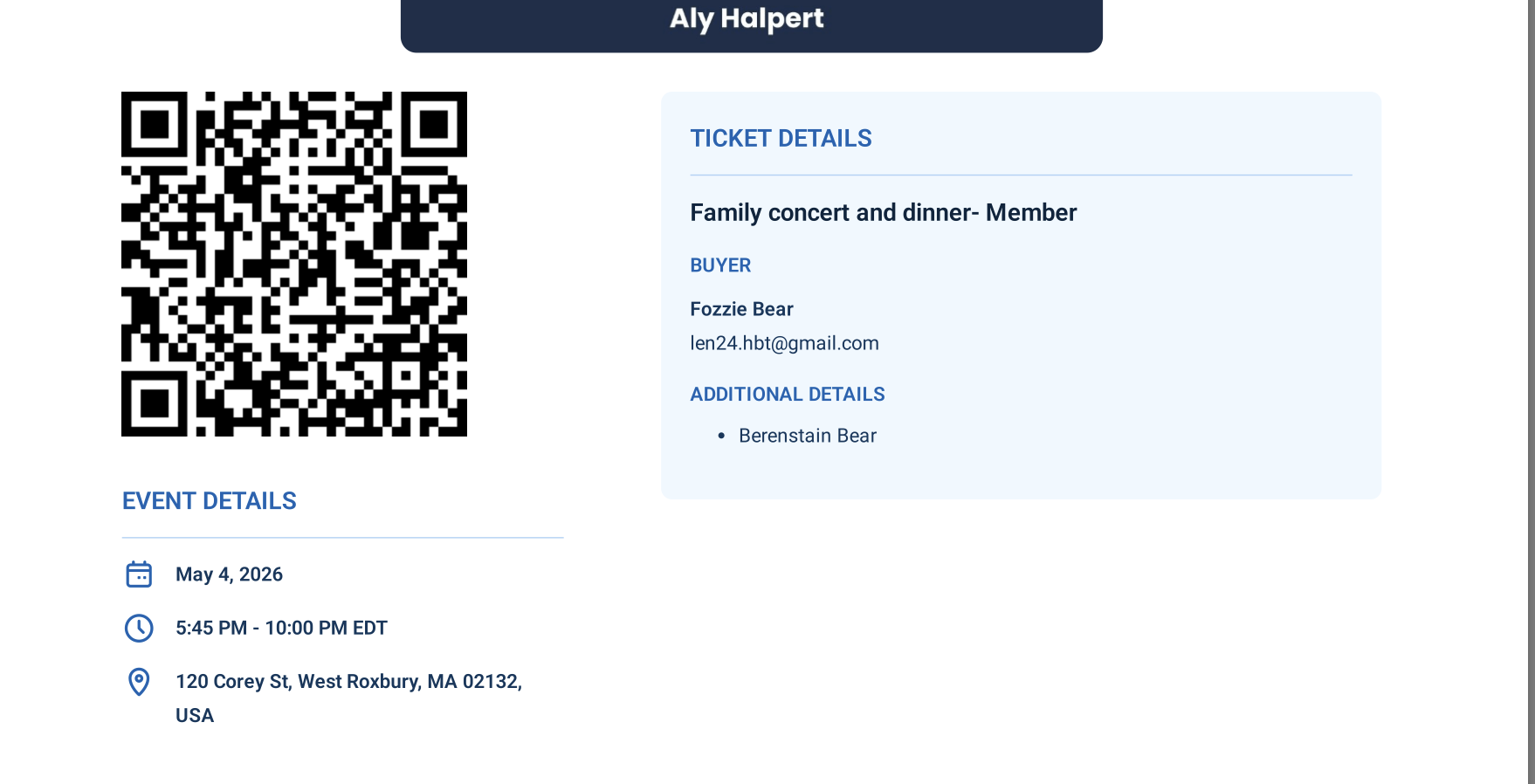
Fozzie Bear
Pizza Lover
Pilgrim Copley
Lorna Doone
Barley Corn
✅ Safe to check them in. After each practice, tap the guest record and choose Undo Check-In to reset it instantly — so the next volunteer can practice on a fresh record.
🔁 Practice Loop — Method A: Manual Check-In
Use this when a guest doesn't have their QR code ready
1
Open the Training manager for your assigned campaign using the buttons above
2
Search for a test name from the matching list above
3
Tap their name to select them, then mark as Checked In
4
Confirm their status shows Checked In ✅
5
Tap Undo Check-In to reset — so the next volunteer can practice on a fresh record
📱 Practice Loop — Method B: QR Code Scan
This is the fastest method — use it whenever a guest has their ticket open on their phone
1
Ask the guest to open their ticket email and show you the QR code
2
Open your phone's camera app — no special app needed, any smartphone camera works
3
Hold the camera over the QR code until a link appears at the top of your screen
4
Tap the Zeffy link that appears
5
You'll be asked: "Are you a staff member or volunteer checking in guests?" — tap Yes
6
✅ Valid ticket: The page shows a green confirmation — the guest is checked in
❌ Already scanned: The page shows the date and time it was previously scanned — send to Problem Resolution
7
Welcome the guest in!
💡 QR Scan Tips
Hold your camera steady and close — about 6–8 inches from the screen works best.
If the camera isn't picking it up, ask the guest to increase their screen brightness.
If the QR scan isn't working at all, switch to Manual Check-In (Method A) — same result, slightly slower.
✅ Training Checklist
Tap each item when done
I opened the Training Check-In Manager for my assigned campaign
I searched for a test customer by name and completed a manual check-in
I confirmed the status changed to Checked In ✅
I tapped Undo Check-In to reset the record
I practiced QR scanning — I know to tap the Zeffy link and tap Yes when asked
I know a green page = valid ticket, a date shown = already scanned
I know to send problem guests to Problem Resolution — not solve it myself
I have the LIVE volunteer portal bookmarked for May 4
When you're done here, bookmark the night-of portal for May 4
🟢 Go to the LIVE Volunteer Portal →